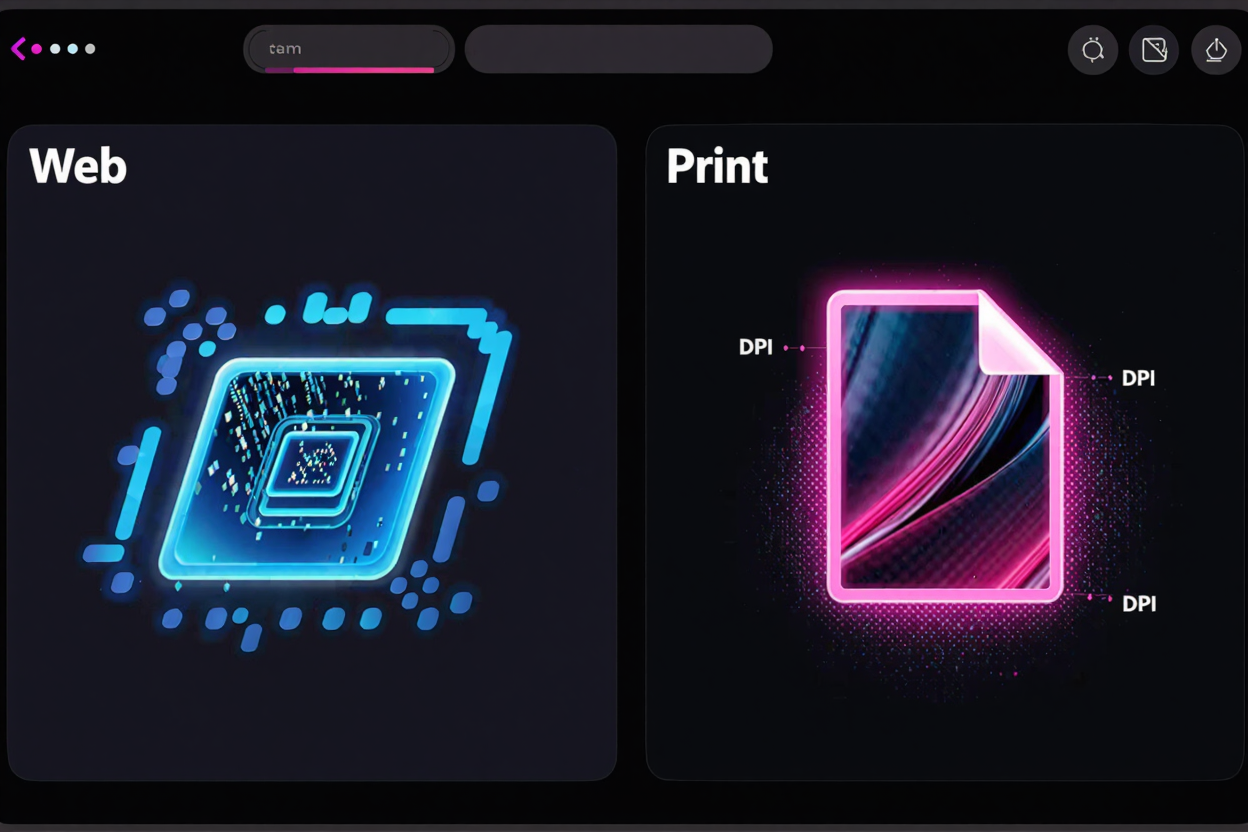
Understanding Image Resolution & DPI: Web vs Print Guide
Master image resolution and DPI for web vs. print with ConvertMinify. Learn to optimize images for speed, quality, and professional results across all your digital and physical projects.
The digital world constantly demands visual content, whether for a website, social media, or a printed brochure. Understanding image resolution and DPI (Dots Per Inch) is fundamental to ensuring your visuals look sharp and professional across all mediums. Confusing these concepts can lead to blurry web images, pixelated prints, or unnecessarily large file sizes. This guide will clarify the distinctions between resolution and DPI, especially as they apply to web and print applications, helping you optimize your images effectively.
What is Image Resolution?
Image resolution defines the detail an image contains, measured by its pixel dimensions (width x height). For instance, a 1920x1080 pixel image has a specific resolution. A higher pixel count translates to more detail and allows for larger display without pixelation, but also results in a larger file size.
Understanding DPI (Dots Per Inch)
DPI, or Dots Per Inch, measures the density of ink dots a printer places per square inch on paper. Higher DPI means more dots, producing a finer, more detailed print. This density directly correlates with the perceived sharpness and quality of the physical output, making it crucial for printed materials.
Web vs. Print: The Core Difference
Optimizing images for web versus print fundamentally depends on their consumption method. Web images are displayed on screens using pixels, while print images are physically rendered on paper with ink dots. This distinction dictates the ideal resolution and DPI settings for each specific medium.
Web Images: Speed and Screen Display
For web images, the primary concern is screen display quality and loading speed. Screens typically display images at a fixed pixel density, often around 72-96 pixels per inch (PPI). Therefore, an image intended for the web doesn't need an extremely high pixel count beyond its intended display size. A 1920x1080 pixel image will look sharp on most screens, regardless of its DPI metadata, as screens interpret pixel dimensions, not DPI. Overly high-resolution images for the web lead to larger file sizes, slowing down website loading times and negatively impacting user experience and SEO. Optimizing images for web means finding the right balance between visual quality and file size. You can easily adjust image dimensions and compress files using a [free image converter] to ensure fast loading times without sacrificing visual appeal.
Print Images: Quality and Detail
Print images demand significantly higher resolution and DPI to achieve professional-quality results. Unlike screens, printers can lay down a much higher density of dots. A standard recommendation for print quality is 300 DPI. At this density, individual dots become imperceptible to the naked eye, producing a smooth, detailed image. Printing a low-resolution web image (e.g., 72 DPI) at a large size will result in a blurry, pixelated output because there aren't enough dots (or pixels interpreted as dots) to render the detail smoothly. Ensuring your images have sufficient resolution for their intended print size is crucial.
PPI vs. DPI: Clarification
While often used interchangeably, PPI (Pixels Per Inch) and DPI (Dots Per Inch) refer to different things. PPI relates to the pixel density of a digital image displayed on a screen. DPI refers to the dot density of an image when printed. A digital image has a certain number of pixels. When you set a DPI for that image, you're essentially telling the printer how many of those pixels to cram into each inch of paper. A 300 PPI image can be printed at 300 DPI, meaning each pixel becomes a dot. But an image only has a native PPI when viewed on a screen; its DPI value is largely metadata that primarily influences print size and quality.
Why It Matters: Avoiding Common Pitfalls
Ignoring these distinctions leads to problems: slow website loading from oversized web images or pixelated printouts from low-resolution files. Proper optimization prevents these issues, ensuring visuals look their best across all platforms. As you manage your digital assets, including images, remember that secure accounts are vital. Use a robust [Password Generator] to create strong, unique passwords for protecting your digital workspaces.
How to Adjust and Optimize Images
Optimizing images involves adjusting their pixel dimensions and, for print, ensuring adequate DPI. For web use, resizing images to their display dimensions and compressing them is key. Many online tools allow you to [convert images online] to different formats and optimize their file size without significant quality loss. For print, you generally need to start with a high-resolution image captured by a good camera or created at a large size. If you need to scale a smaller image for print, be aware that enlarging it too much will degrade quality.
Practical Tips for Image Optimization
For Web:
- Resize images to the exact dimensions they will appear on your website.
- Compress images to reduce file size.
- Use appropriate file formats (e.g., JPEG for photos, PNG for graphics with transparency, WebP for modern web delivery).
- Utilize a service like ConvertMinify for quick and efficient web optimization.
For Print:
- Always aim for 300 DPI at the final print size.
- Start with the highest resolution original image possible.
- Check the image's pixel dimensions: for a 4x6 inch photo at 300 DPI, you'd need 1200x1800 pixels.
- Avoid enlarging images beyond their native resolution to prevent pixelation.
Conclusion
Mastering image resolution and DPI is a critical skill for anyone working with digital content. By understanding the specific requirements for web versus print, you can ensure your images are always crisp, clear, and optimized for their intended purpose. Whether you're enhancing your website's performance or preparing stunning visuals for print, the right approach makes all the difference.
FAQ
Q1: Can I use a web image for print?
A1: Generally, no. Web images are typically low resolution (72-96 PPI) and will appear pixelated and blurry if printed at a significant size. Print requires much higher resolution, usually 300 DPI, for crisp quality.
Q2: Does changing the DPI of an image increase its quality?
A2: Not necessarily. Changing the DPI value in an image's metadata primarily tells a printer how many of the existing pixels to pack into an inch. If the image originally has a low pixel count, simply increasing the DPI value won't add more pixels or detail; it will just make the existing pixels appear smaller when printed, potentially resulting in a smaller but still low-detail print. True quality improvement comes from starting with a high-resolution image.
Q3: What's the ideal resolution for images on a website?
A3: The ideal resolution for web images depends on their display size. For full-width hero images, 1920 pixels wide is common. For smaller images, match the pixel width to their maximum display width on your site. The key is to optimize file size through compression and appropriate dimensions to ensure fast loading times.
Ready to optimize your images for web or print? Visit ConvertMinify.com today to access powerful, easy-to-use tools that help you resize, compress, and convert images, ensuring perfect visuals every time.