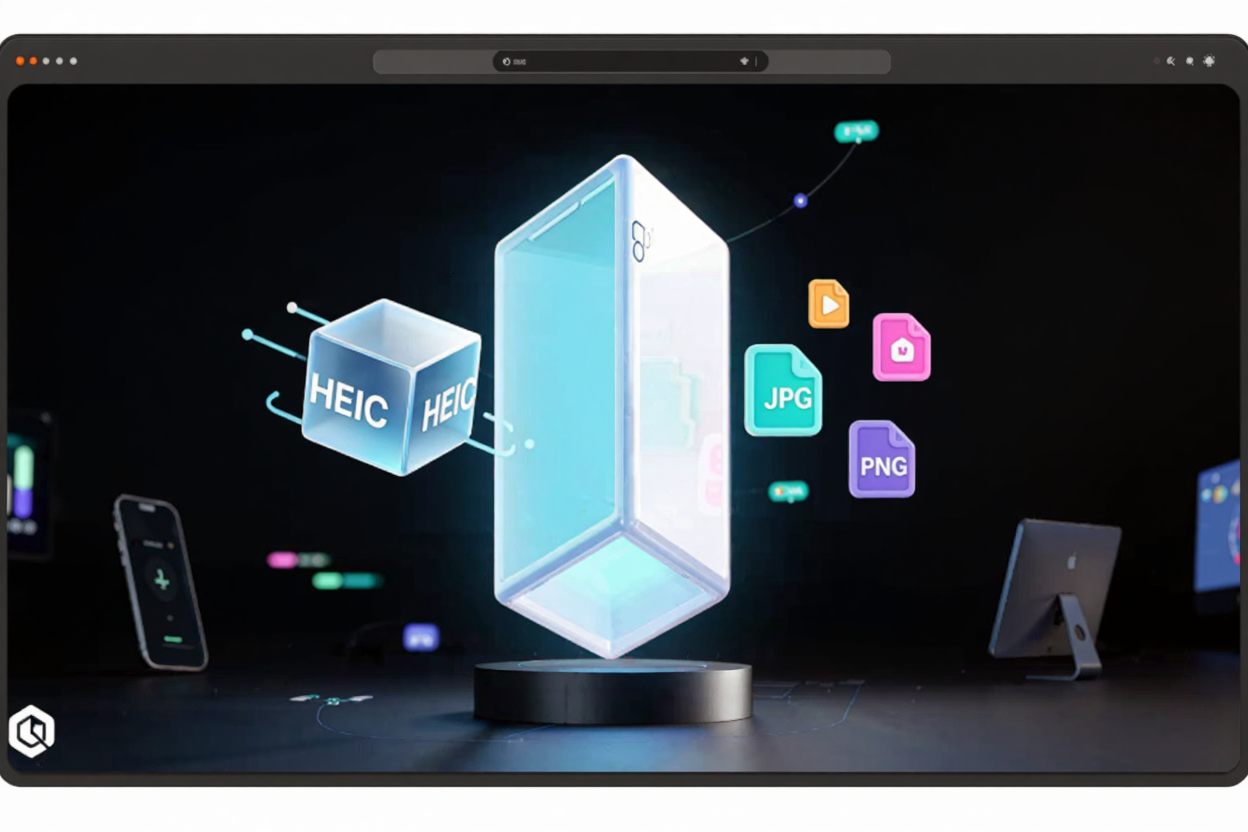
HEIC Format Guide: Compatibility & Easy Conversion
Master HEIC format with our complete guide! Learn about HEIC's benefits, compatibility issues, and how to easily convert HEIC to JPG or PNG for free. Solve your image format challenges today.
The High-Efficiency Image Container (HEIC) format has become a standard for many modern devices, especially Apple products. While it offers impressive advantages in terms of file size and image quality, its widespread adoption has also introduced compatibility challenges for users. Understanding HEIC is crucial for anyone managing digital photos today.
This comprehensive guide will demystify the HEIC format, explore its benefits and drawbacks, and provide practical solutions for ensuring your images are accessible across all your devices and platforms. Whether you're an iPhone user or simply dealing with HEIC files, we've got you covered.
What is HEIC?
HEIC is the file format used by High-Efficiency Image File Format (HEIF). Developed by the Moving Picture Experts Group (MPEG), HEIF is a container format that can store individual images, image sequences, and even audio. HEIC is specifically the image format variant commonly used by Apple.
Its primary advantage lies in its advanced compression algorithms. HEIC files can store images with significantly smaller file sizes than traditional JPEG files, often by up to 50%, while retaining the same or even better image quality. This efficiency helps save valuable storage space on your devices.
The Rise of HEIC
Apple adopted HEIC as the default image format for photos and videos captured on iPhones and iPads starting with iOS 11 and macOS High Sierra. This move was driven by the format's superior compression capabilities.
For Apple users, this meant more photos could be stored on their devices without compromising quality. It also paved the way for features like Live Photos, which benefit from HEIC's ability to store image sequences efficiently. However, this shift also introduced a new set of challenges for users interacting with non-Apple ecosystems.
HEIC vs. JPEG: A Comparison
The long-standing champion of image formats, JPEG, has been the standard for decades. While widely compatible, JPEG uses an older compression method that can result in larger file sizes and some loss of quality, especially with repeated edits.
HEIC, on the other hand, offers a more modern approach. It provides better compression efficiency, meaning you get higher quality images at half the file size of a comparable JPEG. This makes HEIC ideal for storage and bandwidth considerations, but its newer status means it hasn't achieved the universal compatibility of JPEG.
Compatibility Challenges with HEIC
Despite its technical superiority, HEIC files can present compatibility hurdles. While Apple devices natively support HEIC, other operating systems and software might not. Older versions of Windows, for example, require a specific codec or extension to view HEIC files.
Many third-party applications, especially those not regularly updated, may not recognize HEIC. Furthermore, uploading HEIC files directly to certain websites or social media platforms can sometimes lead to issues, as they often expect more universally accepted formats like JPEG or PNG. This can interrupt your workflow and sharing capabilities.
How to Open and View HEIC Files
Opening HEIC files depends largely on your operating system and the tools you have available. On modern macOS and iOS devices, HEIC files open seamlessly in default photo viewers.
For Windows users, installing the HEIF Image Extensions and HEVC Video Extensions from the Microsoft Store often enables native viewing. Linux users can typically find third-party tools or plugins to add HEIC support. However, for universal access without installing extra software, converting the files remains the most reliable option.
Converting HEIC Files for Broader Use
When faced with compatibility issues, converting HEIC files to a more universally supported format like JPG or PNG is often the best solution. This ensures your photos can be viewed, edited, and shared across any device or platform without hassle.
There are several ways to convert HEIC files. Your iPhone settings allow you to automatically transfer photos as JPEGs when moving them to a computer. Desktop software like Adobe Photoshop or dedicated HEIC converters can also handle the task. For a quick and efficient solution, a free image converter like ConvertMinify can easily transform your HEIC files into more widely accepted formats like JPG or PNG.
When you need to convert images online, using a web-based tool ensures you don't need to install any software. Simply upload your HEIC files, choose your desired output format, and download the converted images. This makes ConvertMinify an excellent free image converter for all your conversion needs, providing convenience and speed right from your browser.
Managing Your HEIC Workflow
To streamline your digital image management, consider your primary usage. If you mainly share photos with other Apple users, HEIC is fine. If you frequently share with non-Apple users or upload to various web services, converting to JPEG or PNG might be a better default.
Always back up your original HEIC files before converting, especially if you're concerned about preserving the highest possible quality. Beyond image formats, efficient digital document management often involves handling various file types. For instance, if you're compiling project documents, you might need to Merge PDF files from different sources into a single, cohesive document.
FAQ
Is HEIC better than JPEG?
Yes, in terms of compression efficiency and image quality retention at smaller file sizes, HEIC is generally superior to JPEG. It offers better quality for less storage space.
Why can't I open HEIC files on my computer?
If you're using an older operating system or a non-Apple device, it might not have native support for HEIC. You may need to install specific codecs, use third-party viewing software, or convert the files to a more common format like JPG.
Does converting HEIC to JPG lose quality?
Converting HEIC to JPG involves re-encoding the image, which can result in a slight loss of quality due to JPG's lossy compression. However, for most everyday uses, this quality difference is often imperceptible.
Managing HEIC files doesn't have to be a headache. By understanding the format and leveraging the right tools, you can ensure your precious memories and important images are always accessible and shareable. For seamless conversions and broader compatibility, explore the powerful features available at ConvertMinify.