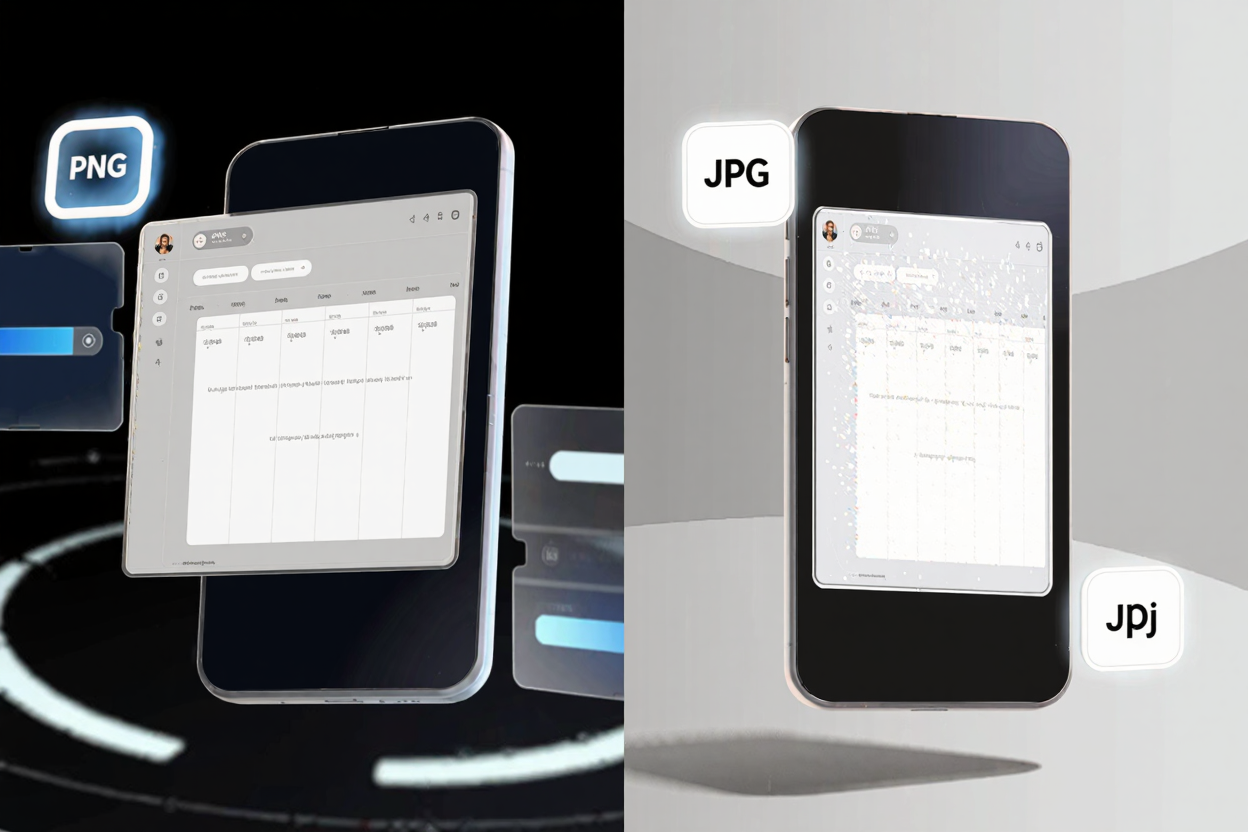
JPG vs PNG for Screenshots: Which Format is Better?
JPG vs PNG for screenshots: discover which image format is better for clarity, file size, and specific use cases. Learn when to use each and optimize your workflow with ConvertMinify.
Screenshots are an indispensable tool in our digital lives, used for everything from technical documentation and bug reports to sharing quick tips or memorable moments. However, the choice between saving your screenshot as a JPG or a PNG can significantly impact its quality, file size, and overall utility. Understanding the fundamental differences between these two popular formats is key to making the best decision for your specific needs.
Understanding JPG: The Lossy Champion
JPG (Joint Photographic Experts Group) is renowned for its use of “lossy” compression. This means that when a JPG file is created or saved, some image data is permanently discarded to achieve a smaller file size. This process is particularly effective for photographs and complex images with smooth color gradients, as the human eye is less likely to detect these subtle losses.
While this compression makes JPGs ideal for web images where quick loading times are crucial, it comes with a trade-off. Repeated saving or aggressive compression can lead to noticeable artifacts, such as blockiness or fuzziness, especially around sharp edges or text. For screenshots, this can be a significant drawback if clarity is paramount.
Understanding PNG: The Lossless Victor
PNG (Portable Network Graphics) stands in contrast with its “lossless” compression method. This means that every time a PNG file is saved, no image data is lost. The original image quality is perfectly preserved, making PNG the preferred choice for graphics, illustrations, and images that contain sharp lines, text, or large areas of uniform color.
Another major advantage of PNG is its support for transparency, allowing you to create screenshots with backgrounds that blend seamlessly into any web page or document. However, the benefit of lossless quality comes with a cost: PNG files are generally much larger than their JPG counterparts, which can impact storage, bandwidth, and loading times.
The Screenshot Showdown: Quality vs. File Size
When it comes to screenshots, the battle between JPG and PNG often boils down to a fundamental trade-off: pixel-perfect quality versus efficient file size. Your decision should be guided by the content of your screenshot and its intended use.
Visual Fidelity: For screenshots containing text, code snippets, user interface elements, or diagrams, PNG is the undisputed champion. Its lossless compression ensures that every character and line remains crisp and readable, without the introduction of compression artifacts that can plague JPGs. If clarity and precision are your top priorities, PNG is the format to choose.
Storage and Bandwidth: If your screenshot is primarily a photograph, a complex image with many colors, or if file size is a critical concern for sharing or web performance, JPG often wins. Its superior compression for photographic content means significantly smaller files, which translates to faster uploads, quicker email attachments, and reduced storage space. However, be mindful of the potential for quality degradation.
Transparency Needs: This is where PNG has an exclusive edge. If you need to capture a specific UI element, an icon, or a portion of a window with a transparent background that will overlay other content, PNG is your only viable option. JPG does not support transparency.
When JPG Takes the Shot
Choose JPG for your screenshots in these scenarios:
- Photographic Content: If your screenshot primarily captures a photograph, a video frame, or a web page rich in complex images and gradients.
- Casual Sharing: When sharing screenshots casually on social media, messaging apps, or via email where minor quality loss is acceptable and file size is more important for quick transmission.
- Large Volumes: If you need to store a vast number of screenshots and storage space is at a premium, JPG's smaller file size can be a significant advantage.
When PNG Captures the Moment
Opt for PNG for your screenshots when:
- Text and UI Clarity: You are capturing text, code, user interface elements, graphs, or any content where pixel-perfect readability and sharp edges are essential.
- Technical Documentation: For tutorials, bug reports, or documentation where every detail needs to be precisely preserved without artifacts.
- Transparent Backgrounds: If you need your screenshot to have a transparent background to integrate seamlessly into other designs or documents.
- Editing Potential: When you anticipate needing to edit the screenshot multiple times, as PNG's lossless nature prevents cumulative quality degradation.
Optimizing Your Screenshot Workflow
Regardless of your chosen format, optimizing your images is a crucial step for efficiency and performance. Sometimes, you might capture a screenshot as a PNG for quality, but then need to convert it to a JPG for web use to save space. Conversely, a JPG might need to be converted to a PNG if transparency becomes necessary.
Utilizing a reliable [free image converter] can streamline this process. These tools allow you to compress images, change formats, and adjust quality settings, ensuring your screenshots are perfectly tailored for their intended purpose without unnecessary bloat or quality loss. This flexibility empowers you to manage your digital assets effectively.
Seamless Conversions with ConvertMinify
When you need to quickly [convert images online] or adjust their parameters, ConvertMinify offers a user-friendly and efficient solution. Our platform simplifies the process of changing image formats, resizing, and optimizing files. Whether you're a developer, designer, or casual user, ConvertMinify provides a powerful and [free image converter] to handle all your image conversion needs, ensuring your screenshots are always in the optimal format.
Beyond Image Formats: Document Management
While image formats are critical, managing digital documents often extends beyond individual images. If you frequently find yourself needing to combine multiple screenshots, related images, or various documents into a single, cohesive file, tools like [Merge PDF] can be incredibly useful. This allows for efficient organization and sharing of comprehensive information packages.
FAQ
Q1: Can I convert a JPG screenshot to PNG and gain quality?
No, converting a JPG to PNG will not restore the quality lost during the JPG's initial compression. While the PNG will be lossless from that point forward, the original data discarded by the JPG format cannot be recovered. It will only prevent further quality degradation.
Q2: How do I reduce the file size of a PNG screenshot?
To reduce the file size of a PNG, you can use an image optimization tool or a [free image converter] like ConvertMinify. These tools can often apply further lossless compression techniques, reduce the color palette, or allow you to convert the PNG to a JPG if some quality loss is acceptable for a significantly smaller file.
Q3: Is there a universal best format for all screenshots?
No, there isn't a single