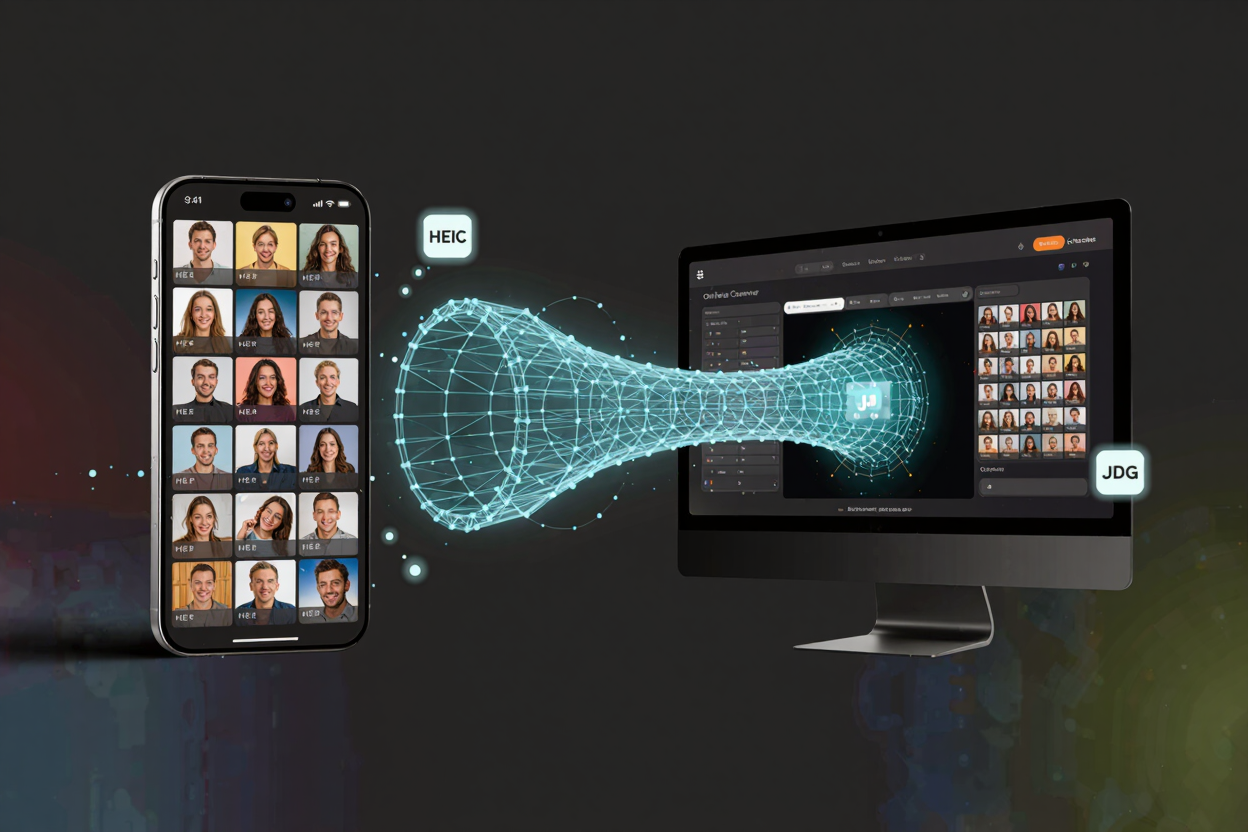
Batch Convert HEIC to JPG: iPhone Photos Made Easy
Learn how to batch convert HEIC photos from iPhone to JPG effortlessly. Discover simple steps using ConvertMinify's free online tool and other methods for seamless photo sharing.
Your iPhone captures stunning photos, but the HEIC format can create compatibility issues outside the Apple ecosystem. While HEIC (High-Efficiency Image Container) saves storage space, its limited support often necessitates converting these files to the universally accepted JPG format. JPG (Joint Photographic Experts Group) is widely supported across devices, operating systems, and web platforms, ensuring seamless sharing and editing. For a large collection of HEIC images, batch conversion is essential to save time and effort.
Why Convert HEIC to JPG?
The primary reason to convert HEIC to JPG is universal compatibility. Many older devices, Windows applications, and online services do not natively support HEIC files. This means your photos might not display correctly or even open for others. JPG, on the other hand, is a global standard, making it easier to share, upload, and edit your images without hassle.
Batch Convert HEIC to JPG with ConvertMinify
The most efficient way to handle numerous HEIC files is by using an online free image converter like ConvertMinify. This web-based tool simplifies the conversion process, allowing you to convert multiple HEIC files to JPG simultaneously without software downloads. It's ideal for a quick, hassle-free solution.
Here’s a simple step-by-step guide:
- Access ConvertMinify: Open your web browser and navigate to free image converter. The interface is intuitive and user-friendly.
- Upload Your HEIC Files: Click "Upload Files" or drag and drop your HEIC images. You can select multiple files at once.
- Select Output Format: Ensure "JPG" is selected as your desired output format.
- Initiate Conversion: Click "Convert." The tool will quickly process your images.
- Download Your JPGs: Download your newly converted JPG files individually or as a compressed ZIP archive.
Using an online tool to convert images online offers significant advantages. It requires no installation, is accessible from any device, and processes files quickly and securely.
Other Methods for HEIC to JPG Conversion
While online converters excel at batch processing, other methods exist for specific needs.
On Your iPhone
You can set your iPhone to capture photos directly in JPG. Go to Settings > Camera > Formats and select Most Compatible. For existing photos, transferring them to a Mac or PC via USB often offers an automatic conversion to JPG.
Using macOS Photos App
Mac users can convert HEIC to JPG using the built-in Photos app.
- Open Photos App: Import your HEIC photos.
- Export Photos: Select desired photos. Go to
File > Export > Export Photos.... - Choose JPG: Select
JPGas the Photo Kind and clickExport.
Using Windows
Windows generally requires third-party applications or online solutions like ConvertMinify for efficient HEIC batch conversion. While the Photos app can open HEIC files with an extension, it lacks native batch conversion to JPG.
Beyond Images: Managing Digital Files
Efficiently managing all digital assets is crucial. For large documents, a tool like PDF Compressor can be invaluable. It reduces PDF file sizes, making them easier to share and upload without quality loss. This ensures all your files are optimized for their intended use.
Tips for Managing Your Photo Library
- Regular Backups: Always back up original HEIC files before converting.
- Organize into Folders: Use clear folder structures for easy navigation.
- Delete Duplicates: Periodically free up storage by removing duplicate photos.
- Consider Cloud Storage: Utilize cloud services for easy access and backup.
- Understand Your Needs: Decide if JPG conversion is necessary for all photos or only for specific sharing purposes.
FAQ
Q1: Is it safe to upload my photos to an online converter? A1: Reputable online converters like ConvertMinify prioritize user privacy and data security. Files are processed on secure servers and typically deleted after a short period. Always review a service's privacy policy.
Q2: Will converting HEIC to JPG reduce image quality? A2: JPG is a lossy compression format. While quality differences are often imperceptible at higher settings, repeated conversions or very low-quality settings can lead to noticeable degradation. ConvertMinify aims to maintain high quality.
Q3: Can I convert HEIC photos on my Android phone? A3: Yes, you can use online converters like ConvertMinify directly from your Android browser. Third-party apps are also available on the Google Play Store for HEIC to JPG conversion.
Start Converting Your HEIC Photos Today
Don't let incompatible file formats disrupt your digital workflow. With user-friendly tools like ConvertMinify, you can quickly and efficiently batch convert your HEIC photos to JPG, gaining universal compatibility and convenience. Start streamlining your photo management process now.