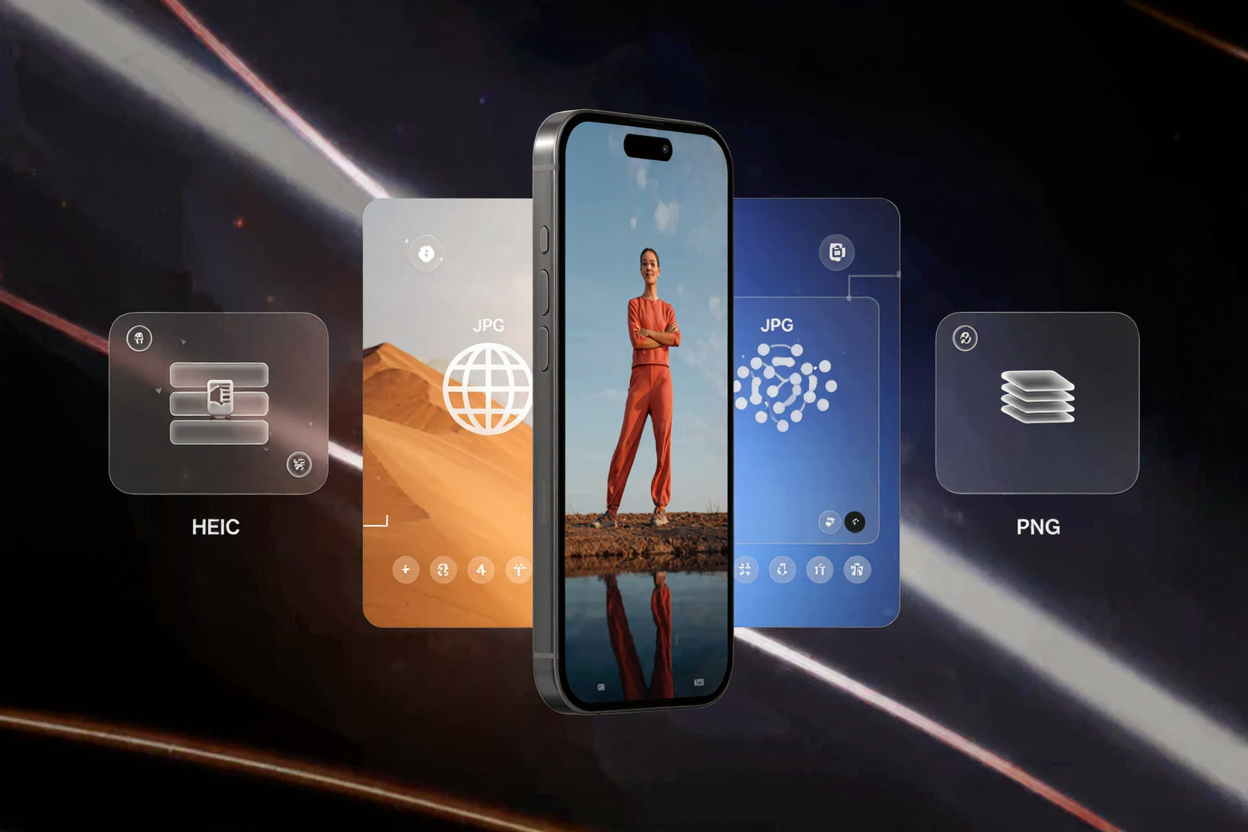
HEIC vs JPG vs PNG: iPhone Photo Format Guide
Confused about HEIC, JPG, and PNG for your iPhone photos? This guide breaks down each format's pros and cons to help you choose the best one for every situation.
Navigating the world of image formats can be a little daunting, especially when your iPhone automatically chooses one for you. For iPhone users, understanding the differences between HEIC, JPG, and PNG is crucial for managing storage, ensuring compatibility, and maintaining image quality.
Each format serves a distinct purpose, offering unique advantages and disadvantages depending on how you intend to use your photos. Choosing the right one can optimize your workflow, improve sharing experiences, and even save valuable storage space on your device or cloud.
Understanding HEIC (High Efficiency Image Container)
HEIC is Apple's default image format, introduced with iOS 11. It's part of the HEIF (High Efficiency Image File Format) standard, designed to store images using advanced compression methods. This format is a game-changer for iPhone users.
One of HEIC's primary benefits is its superior compression efficiency. It can store images at a significantly smaller file size than JPG, often reducing storage needs by half, without compromising visual quality. HEIC also supports advanced features like Live Photos, image sequences, and transparency.
However, HEIC's main drawback is its compatibility. While seamlessly integrated within the Apple ecosystem, sharing HEIC files with non-Apple devices or older software can be problematic. Recipients might need to convert the files to a more universally recognized format to view them.
Understanding JPG (Joint Photographic Experts Group)
JPG, or JPEG, is the most widely recognized and used image format across the internet and digital devices. Its universal compatibility makes it a safe and reliable choice for almost any situation. Nearly every device, browser, and software application can open a JPG file.
This format uses a "lossy" compression method, meaning some image data is discarded during saving to achieve smaller file sizes. While this makes JPGs great for web use and sharing, repeated editing and resaving can lead to noticeable degradation in image quality over time. It's best suited for photographs with continuous tones and colors.
JPG files do not support transparency, making them unsuitable for logos or images requiring a clear background. Despite this, its excellent balance of file size and acceptable quality for general photography ensures its continued popularity. If you need to convert images online to JPG for broader compatibility, tools are readily available.
Understanding PNG (Portable Network Graphics)
PNG is a lossless compression format, meaning it retains all original image data, preventing any quality loss during saving or editing. This makes PNG an excellent choice when image fidelity is paramount, especially for graphics, screenshots, and images with sharp lines and text.
Its most distinguishing feature is support for transparency, allowing images to have clear backgrounds that blend seamlessly into any webpage or document. This is invaluable for branding, web design, and creating layered graphics. For instance, if you're creating a complex document, you might even need to Merge PDF files that contain various transparent PNG graphics.
The main disadvantage of PNG is its larger file size compared to JPG, especially for complex photographs. While ideal for graphics, using PNG for everyday photos can quickly consume significant storage space. It's generally not the preferred format for sharing large collections of photographs due to this size consideration.
When to Use Which Format for iPhone Photos
Choosing the right format depends entirely on your needs. For everyday iPhone photography, especially if you prioritize storage space and primarily share within the Apple ecosystem, HEIC is an excellent default. It delivers high quality at a fraction of the size.
When sharing photos with friends and family who use Android devices or PCs, or when uploading images to social media and websites, converting to JPG is usually the best approach. Its universal compatibility ensures everyone can view your images without hassle. You can easily free image converter to change formats.
For screenshots, graphics, illustrations, or any image where transparency or absolute pixel-perfect quality is essential, PNG is your go-to format. Think logos, infographics, or detailed diagrams. While larger, the quality and transparency capabilities are unmatched for these specific uses.
Converting Image Formats for Optimal Use
Given the different strengths of each format, you'll often find yourself needing to convert images. For example, you might take a photo in HEIC on your iPhone but need to convert it to JPG for a blog post or to PNG for a design project. This process is straightforward with the right tools.
Online converters provide a convenient way to switch between formats without installing software. They allow you to quickly adapt your images to suit various platforms and purposes. Whether you need to downsize a HEIC or add transparency to an image, a reliable free image converter can handle the task efficiently.
Best Practices for iPhone Photo Management
Beyond choosing the right format, smart photo management involves regular backups and organization. Utilize cloud services like iCloud Photos to automatically sync and store your images, ensuring they are safe and accessible across devices. Regularly review your photo library to delete duplicates or unnecessary shots.
Consider organizing your photos into albums based on events, dates, or subjects. This makes it easier to find specific images when you need them. Periodically archiving older photos to an external drive can also free up valuable cloud and device storage, keeping your current library lean and manageable.
FAQ
Q: Can I change my iPhone's default photo format from HEIC to JPG?
A: Yes, you can. Go to Settings > Camera > Formats and select "Most Compatible" instead of "High Efficiency." This will make your iPhone capture photos in JPG format by default.
Q: Does converting an image from HEIC to JPG reduce its quality?
A: When converting from HEIC to JPG, there might be a slight, often imperceptible, reduction in quality due to JPG's lossy compression. However, for most everyday uses, the quality difference is negligible, and the benefit of wider compatibility outweighs this minor loss.
Q: When should I absolutely avoid using PNG for photos?
A: You should avoid using PNG for large collections of high-resolution photographs, especially if file size is a concern for storage or upload speeds. Its lossless nature means significantly larger files, which can be impractical for casual sharing or web galleries of many images.
Make Smart Choices for Your iPhone Photos
Understanding HEIC, JPG, and PNG empowers you to make informed decisions about your iPhone photos. Whether it's saving space, ensuring compatibility, or preserving quality, each format has its ideal use case. By choosing wisely, you can optimize your digital photo experience.
Ready to manage your image formats with ease? Explore the powerful and user-friendly tools at ConvertMinify to handle all your image conversion needs quickly and efficiently.