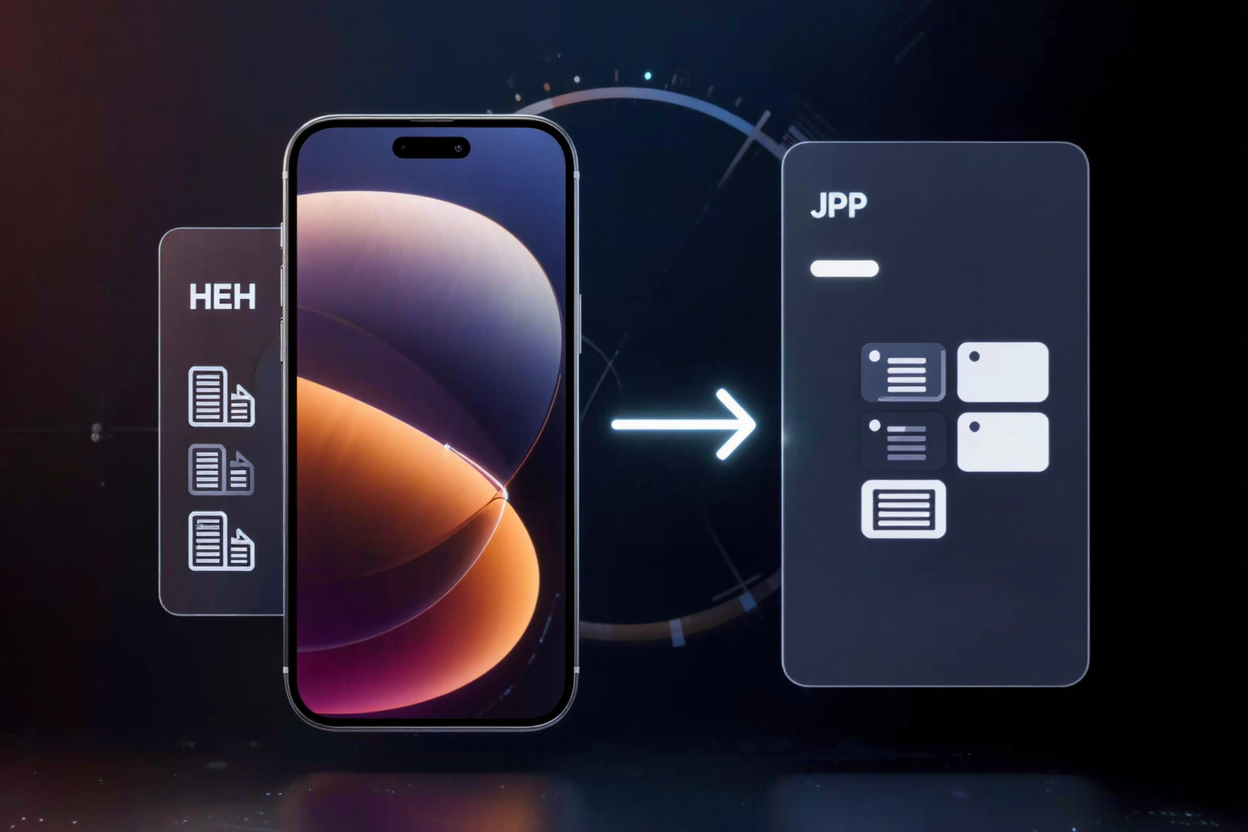
HEIC vs JPG: iPhone Photo Format Comparison | ConvertMinify
HEIC vs JPG: iPhone photo format comparison. Discover key differences in file size, quality, & compatibility. Learn when to use each & convert HEIC to JPG with ConvertMinify.
When you capture a moment with your iPhone, you're likely creating either a HEIC or JPG file. Apple made HEIC the default format years ago, aiming for efficiency and quality. However, the choice between these two image formats has significant implications for storage, compatibility, and sharing. Understanding their differences is crucial for managing your photo library effectively.
What is HEIC?
HEIC stands for High Efficiency Image Container, and it's Apple's proprietary format for storing images. Introduced with iOS 11, it utilizes High Efficiency Video Coding (HEVC) compression. This advanced compression technology allows HEIC files to retain excellent image quality while being significantly smaller in file size compared to JPGs. It can also store multiple images in one file, like a burst of photos or Live Photos.
What is JPG?
JPG, or JPEG (Joint Photographic Experts Group), has been the long-standing standard for digital images for decades. It's renowned for its universal compatibility across virtually all devices, operating systems, and web browsers. JPG uses a "lossy" compression method, meaning some data is discarded during the compression process to achieve smaller file sizes. While this can result in minor quality loss, it's often imperceptible to the human eye, making JPG a popular choice for everyday photos.
Key Differences: File Size, Quality, Compatibility
The primary distinction between HEIC and JPG lies in their efficiency and reach. HEIC files are typically about half the size of equivalent JPGs, saving valuable storage space on your iPhone and in iCloud. Despite this smaller footprint, HEIC often maintains a comparable or even superior visual quality due to its advanced compression algorithms. However, JPG wins hands-down on compatibility; it's universally recognized, whereas HEIC may require conversion for use on older devices or certain non-Apple platforms. This is where a free image converter becomes invaluable.
Pros and Cons of HEIC
Pros:
- Superior Compression: Significantly smaller file sizes, saving storage space.
- Better Image Quality: Often retains more detail and dynamic range at a smaller size.
- Advanced Features: Supports transparency, image sequences (Live Photos), and 16-bit color. Cons:
- Limited Compatibility: Not universally supported across all devices and software, especially older ones.
- Conversion Needed: Often requires conversion to JPG for sharing or editing on non-Apple systems.
Pros and Cons of JPG
Pros:
- Universal Compatibility: Works everywhere, from ancient computers to modern web browsers.
- Widely Accepted: The de facto standard for digital photography, easy to share and edit.
- Predictable Performance: Well-understood and stable across various platforms. Cons:
- Larger File Sizes: Takes up more storage space compared to HEIC for similar quality.
- Lossy Compression: Some image data is permanently discarded during compression, potentially affecting quality over multiple edits.
When to Use HEIC vs. JPG
For most iPhone users, HEIC is the default and a perfectly suitable choice. If storage space is a premium and you primarily view and edit photos within the Apple ecosystem, sticking with HEIC makes sense. Its efficiency helps keep your device lean and your iCloud storage manageable. However, if you frequently share photos with Android users, upload them to websites that don't support HEIC, or work with older software, converting your HEIC files to JPG is often necessary. A reliable tool to convert images online can streamline this process significantly.
How to Convert HEIC to JPG
Converting HEIC files to JPG is straightforward, especially with the right tools. Your iPhone can automatically convert HEIC to JPG when sharing to non-Apple services. For bulk conversions or specific needs, dedicated software or online converters are ideal. Websites like ConvertMinify offer a simple, efficient way to transform your HEIC files into JPGs without compromising quality. This ensures your photos are accessible and viewable across any platform, making digital asset management seamless. While you're managing images, remember that effectively handling all your digital documents can be made easier with tools that allow you to Merge PDF files, ensuring all related content is kept together.
Maintaining your digital photo library often involves more than just conversion; it's about organization and accessibility. For those who need a flexible solution to manage various image formats, a powerful free image converter can be an indispensable resource. It bridges the gap between different standards, ensuring your memories are always within reach, no matter the device or platform.
FAQ
Q1: Can I change my iPhone to always take photos in JPG instead of HEIC?
Yes, you can. Go to Settings > Camera > Formats, then select "Most Compatible" which will make your iPhone capture photos in JPG format. Keep in mind this will result in larger file sizes.
Q2: Does converting HEIC to JPG reduce image quality?
When converting HEIC to JPG, there can be a minimal, often imperceptible, loss of quality due to JPG's lossy compression. However, a good quality converter will minimize this effect, ensuring your images still look great.
Q3: Why did Apple switch to HEIC as the default?
Apple switched to HEIC to optimize storage space on iPhones and iCloud without sacrificing image quality. HEIC's advanced compression allows for significantly smaller file sizes, which is crucial given the ever-increasing resolution of iPhone cameras.
Don't let incompatible image formats hinder your digital workflow. Whether you're a casual photographer or a professional, managing your photos efficiently is key. Explore ConvertMinify today to effortlessly convert HEIC to JPG and handle all your image conversion needs with ease.