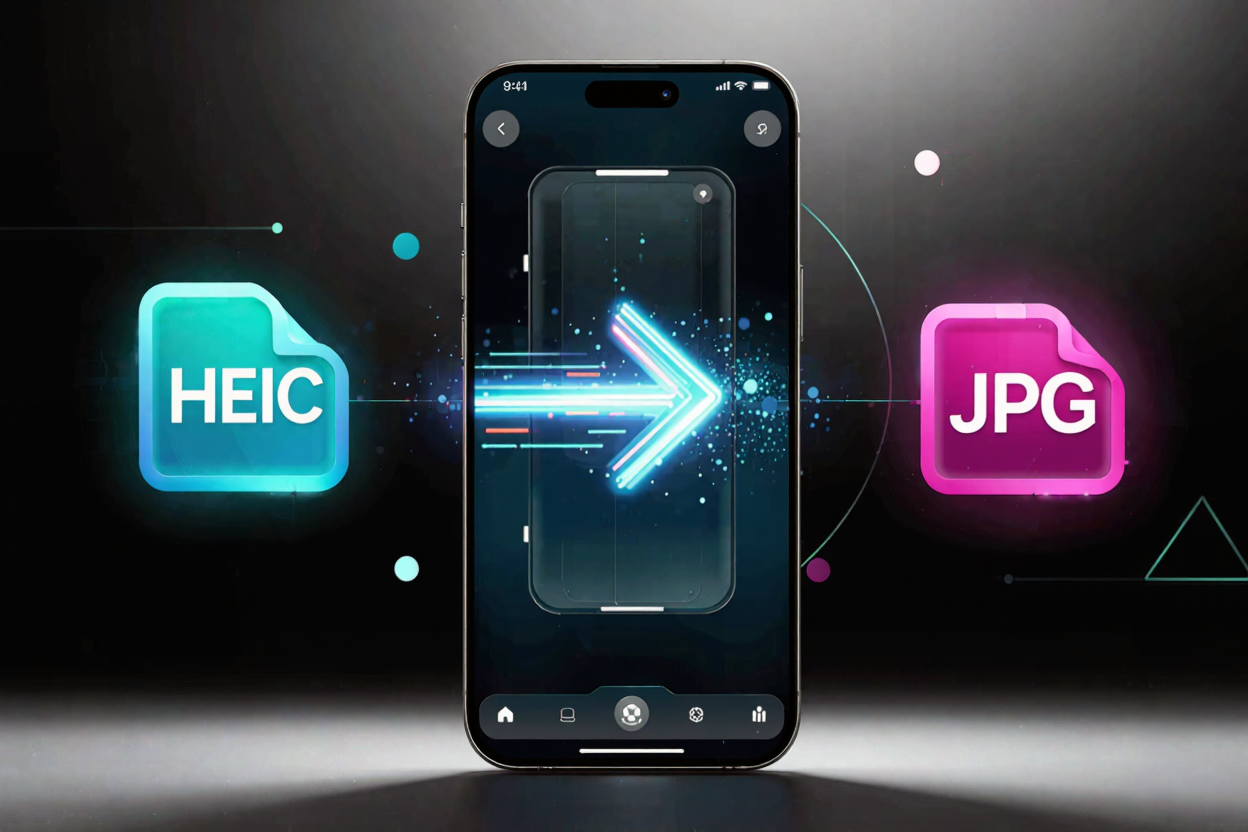
HEIC to JPG: Convert iPhone Photos Easily | ConvertMinify
Easily convert your iPhone HEIC photos to JPG format with our comprehensive guide. Learn quick online methods, iPhone settings, and desktop options to ensure compatibility and effortless sharing. Simplify your photo management today!
iPhone photos are renowned for their stunning clarity and vibrant colors, but the HEIC format, Apple's default since iOS 11, can sometimes be a source of frustration. While HEIC offers excellent compression and saves valuable storage space on your device, its compatibility isn't universal.
Sharing these high-efficiency image files with non-Apple users or uploading them to certain platforms often requires a conversion. Understanding how to easily change HEIC to JPG is crucial for seamless photo management and ensuring your memories are always accessible, no matter the device or platform.
What is HEIC?
HEIC stands for High-Efficiency Image Container, and it's essentially a modern, space-saving format. It allows your iPhone to capture photos that take up significantly less storage compared to the older JPG format, without a noticeable drop in visual quality. This efficiency is a major benefit for users with large photo libraries.
Despite its technical advantages, the primary challenge with HEIC is its limited adoption outside the Apple ecosystem. Many older devices, operating systems, and a variety of software applications may not natively support viewing or editing HEIC files.
Why Convert to JPG?
JPG (or JPEG) remains the most widely recognized and compatible image format across virtually all digital platforms. From Windows PCs and Android phones to web browsers and graphic design software, JPG is universally supported.
Converting your HEIC files to JPG ensures maximum compatibility. This allows you to effortlessly share your cherished photos with friends and family, upload them to social media, or use them in any application without encountering frustrating format errors. It eliminates the hassle of incompatibility.
Easy Methods to Convert HEIC to JPG
There are several effective ways to convert your HEIC files to the more universally accepted JPG format. The best method for you will depend on whether you need to convert a few images quickly or manage a larger batch.
We'll explore the most convenient and popular options, from simple online tools to adjusting your iPhone's camera settings for future captures. Each method offers a unique balance of speed, convenience, and control.
Method 1: Using an Online HEIC to JPG Converter (Recommended)
Online conversion tools provide the quickest and most straightforward way to change your image formats without installing any additional software. They are accessible from any device with an internet connection, offering unparalleled convenience.
Websites like free image converter offer a secure and efficient platform designed to handle your conversions with ease. This method is particularly ideal for quick, on-the-go needs or when you need to convert only a handful of images.
How to Convert with ConvertMinify:
- Visit the Website: Open your preferred web browser and navigate directly to free image converter. The interface is designed to be intuitive and user-friendly.
- Upload Your HEIC Files: Click on the designated