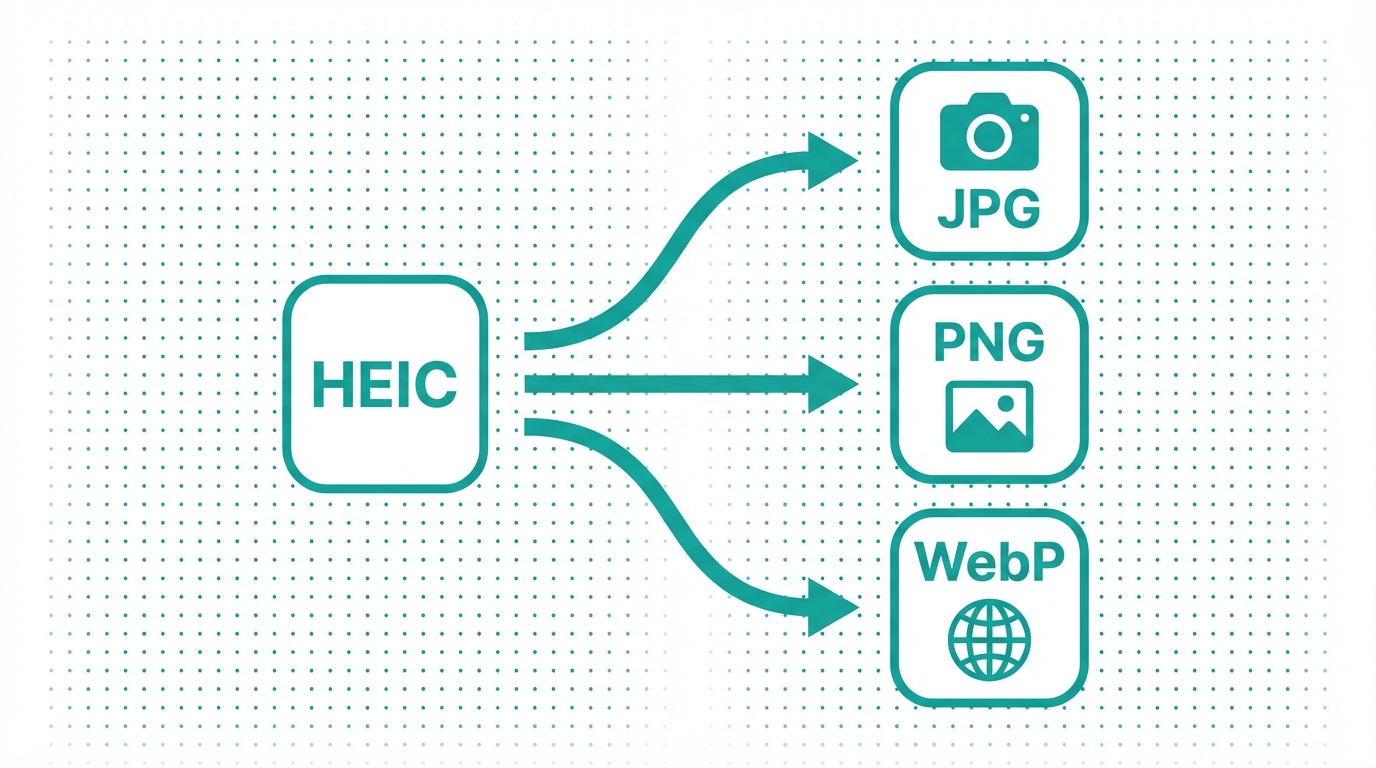
How to Convert HEIC to JPG, PNG, and WebP: The Ultimate Guide
Learn how to convert HEIC files to JPG, PNG, and WebP on any device. Compare output formats, discover the best conversion methods, and find optimal quality settings for web, print, and social media.
Your iPhone takes stunning photos — but the moment you try to open one on a Windows PC, upload it to a website, or send it to a friend with an Android phone, things fall apart. The culprit? HEIC, Apple's default image format that most of the non-Apple world still struggles to support. In this guide, we'll walk you through everything you need to know about converting HEIC files to universally compatible formats like JPG, PNG, and WebP.
What Is HEIC and Why Does Your iPhone Use It?
HEIC (High Efficiency Image Codec) is Apple's chosen image format, built on the HEVC (H.265) video compression standard. Since iOS 11, every iPhone and iPad saves photos in HEIC by default. The reason is simple: HEIC files are roughly half the size of JPEG files at equivalent visual quality.
For Apple users, this is great news — you can store twice as many photos on your device. But HEIC comes with a significant trade-off: limited compatibility outside the Apple ecosystem. Here's where the problems start:
- Windows PCs require additional codec extensions (HEIF Image Extensions + HEVC Video Extensions) to even open HEIC files, and the HEVC extension costs money
- Older versions of Android (before Android 10) can't read HEIC at all
- Most websites and CMS platforms reject HEIC uploads — try uploading one to WordPress, Shopify, or a government form and you'll hit a wall
- Many image editors have limited HEIC support — even Adobe Photoshop only handles 8-bit HEIC, not 10-bit or 12-bit HDR
- Email clients often can't display inline HEIC images, showing broken image icons instead
- Social media platforms technically accept HEIC but re-encode everything anyway, giving you less control over the output
That's why converting HEIC to a more universal format is one of the most common image tasks on the internet today.
Need to convert right now? Use our free HEIC to JPG converter — it runs entirely in your browser, so your photos never leave your device.
Which Format Should You Convert HEIC To?
Before you convert, it's worth understanding which output format best fits your needs. Each format has distinct strengths:
JPG (JPEG) — The Universal Standard
JPG is the most widely supported image format in existence. Every device, browser, application, and platform on Earth can open a JPG file. It uses lossy compression, which means some quality is lost during conversion, but at quality settings of 80–90%, the difference is invisible to the human eye.
Best for: General sharing, email attachments, uploading to websites, social media posts, printing at photo labs, government/official form submissions.
PNG — When Quality and Transparency Matter
PNG uses lossless compression, meaning zero quality loss during conversion. It also supports transparency (alpha channels), making it essential for graphics, logos, and design work. The trade-off is larger file sizes — a PNG version of a photo can be 5–10 times larger than a JPG.
Best for: Graphics with transparency, screenshots, design assets, images that need repeated editing, medical or scientific imaging where accuracy is critical.
WebP — The Modern Web Standard
WebP, developed by Google, offers the best of both worlds: smaller file sizes than JPG with better quality, plus support for transparency and animation. As of 2026, over 97% of browsers support WebP, making it the ideal format for web use.
Best for: Website images, progressive web apps, any web project where performance matters, blogs, e-commerce product photos.
AVIF — The Next Generation
AVIF offers even better compression than WebP and supports HDR, wide color gamut, and transparency. Browser support has grown to over 93%, but it's still not as universal as JPG or WebP.
Best for: Cutting-edge web projects, HDR content, cases where maximum compression is needed without quality loss.
Quick Comparison Table
| Feature | JPG | PNG | WebP | AVIF |
|---|---|---|---|---|
| File Size | Small | Large | Smallest | Smallest |
| Quality Loss | Yes (lossy) | No (lossless) | Optional | Optional |
| Transparency | No | Yes | Yes | Yes |
| Animation | No | No | Yes | Yes |
| Browser Support | 100% | 100% | 97%+ | 93%+ |
| Best Use Case | Sharing | Design | Web | Advanced Web |
Not sure which format is right for you? Use our format comparison tool to see detailed side-by-side comparisons of every image format.
How to Convert HEIC Files: Every Method Explained
Method 1: Online Browser-Based Converter (Fastest)
The quickest way to convert HEIC files is using an online converter that processes everything in your browser. No software installation, no account creation, and your files never leave your device.
Here's how it works:
- Open the converter tool in any browser (Chrome, Safari, Firefox, Edge)
- Drag and drop your HEIC files or click to select them
- Choose your output format (JPG, PNG, WebP, etc.)
- Adjust quality settings if needed (80–85% is optimal for most cases)
- Click Convert and download your files
The entire process takes seconds, even for batch conversions.
Try it yourself: Our free HEIC converter supports batch conversion to JPG, PNG, WebP, and more — all processing happens locally in your browser for maximum privacy.
Method 2: iPhone Settings (Automatic Conversion)
If you want your iPhone to automatically send photos as JPG instead of HEIC, you can change a setting:
- Open Settings on your iPhone
- Go to Camera → Formats
- Select Most Compatible
This forces your iPhone to shoot in JPG instead of HEIC. However, keep in mind that your photos will take up roughly twice the storage space.
There's also a middle-ground option: keep shooting in HEIC (for storage efficiency) but enable automatic conversion when sharing:
- Open Settings → Photos
- Under "Transfer to Mac or PC," select Automatic
This way, your iPhone stores photos efficiently in HEIC but automatically converts them to JPG when you AirDrop, email, or transfer them.
Method 3: Mac Preview (Built-in, No Extra Software)
Mac users have a free conversion tool already installed:
- Open the HEIC file in Preview
- Click File → Export
- Choose your format (JPEG, PNG, TIFF)
- Adjust the quality slider
- Click Save
For batch conversion, select multiple HEIC files in Finder, right-click, and choose Quick Actions → Convert Image. This works in macOS Monterey and later.
Method 4: Windows Photos App
Windows 10 and 11 can handle HEIC files, but you may need to install the free HEIF Image Extensions from the Microsoft Store first:
- Install HEIF Image Extensions from the Microsoft Store (free)
- Open the HEIC file in the Photos app
- Click the three-dot menu → Save as
- Choose JPG or PNG as the output format
Note: For full HEVC codec support (needed for some HEIC files), Microsoft charges a small fee for the HEVC Video Extensions. This is one of the reasons many users prefer online converters.
Method 5: Command Line (For Developers and Power Users)
If you're comfortable with the terminal, tools like ImageMagick and libheif offer powerful conversion options:
# Using ImageMagick
magick input.heic output.jpg

# Batch convert all HEIC files in a directory
for file in *.heic; do magick "$file" "${file%.heic}.jpg"; done

# Using libheif (heif-convert)
heif-convert input.heic output.jpg -q 85

# Using ffmpeg
ffmpeg -i input.heic output.jpg
These tools are especially useful for automated workflows, CI/CD pipelines, and server-side image processing.
Batch Conversion: Handling Hundreds of HEIC Files
If you've just transferred 500 vacation photos from your iPhone to your PC, converting them one by one isn't realistic. Here's how to handle bulk conversions efficiently:
What to Look For in a Batch Converter
- No file limits — some tools cap you at 5–10 files per session
- Consistent quality settings — apply the same quality level across all files
- Original filename preservation — your converted files should keep their original names
- Metadata handling — choose whether to keep or strip EXIF data (GPS location, camera settings, timestamps)
- ZIP download — download all converted files in a single archive
Optimal Settings for Batch Conversion
| Scenario | Format | Quality | Resize? |
|---|---|---|---|
| General sharing | JPG | 85% | No |
| Website upload | WebP | 80% | Yes (max 1920px wide) |
| Social media | JPG | 85% | Yes (platform-specific) |
| JPG or PNG | 95% | No | |
| Archival backup | PNG | Lossless | No |
| Email attachment | JPG | 75% | Yes (max 1600px wide) |
HEIC Conversion Quality: What Gets Lost?
One of the biggest concerns when converting HEIC files is quality loss. Here's exactly what happens during conversion:
HEIC → JPG
Since both are lossy formats, there's always some generational quality loss when converting. At quality 85–90%, this loss is negligible for photographs. However, areas with smooth gradients (like sky or skin) may show subtle banding artifacts at lower quality settings.
HEIC → PNG
This is a lossless conversion — zero quality loss. The PNG file is a pixel-perfect representation of the HEIC original. The downside is that PNG files are significantly larger, typically 5–10x bigger than the HEIC source.
HEIC → WebP
WebP's compression is comparable to HEIC, so the quality-to-size ratio is excellent. At quality 80–85%, WebP files are often smaller than the HEIC originals while maintaining virtually identical visual quality.
What About HDR and Wide Color?
HEIC supports 10-bit and 12-bit color depth, plus HDR metadata. When converting to JPG (which only supports 8-bit), you'll lose HDR information and some color range. The image will still look great on standard displays, but the expanded dynamic range and P3 wide color gamut data will be tone-mapped down to sRGB 8-bit.
If preserving HDR is important, convert to AVIF (which supports HDR) or keep the original HEIC file.
Metadata Preservation
HEIC files contain rich metadata: EXIF data (camera model, aperture, shutter speed, ISO, GPS coordinates), color profiles, depth maps, and editing history. Most converters preserve EXIF data by default, but depth maps and editing history are typically lost during conversion.
If privacy is a concern, look for converters that offer the option to strip GPS location data while keeping other useful metadata.
Common HEIC Conversion Problems and Solutions
"I can't open HEIC files on my Windows PC"
Install the free HEIF Image Extensions from the Microsoft Store. If that doesn't work, use an online converter to convert your files to JPG.
"My converted JPGs look washed out"
This usually happens when the converter doesn't properly handle the P3 color profile embedded in iPhone photos. Look for a converter that preserves or correctly converts color profiles from P3 to sRGB.
"File sizes are bigger after conversion"
If you're converting HEIC to PNG, this is expected — PNG is lossless and produces much larger files. Switch to JPG or WebP for smaller output sizes.
"I lost my Live Photo animation"
Live Photos in HEIC format contain both a still image and a short video clip. Standard image converters only extract the still frame. To preserve the video component, you'll need to extract it separately as a short video file.
"Batch conversion is too slow"
Browser-based converters that process files locally are generally faster than cloud-based tools because there's no upload/download overhead. If you're working with thousands of files, consider using command-line tools like ImageMagick for maximum speed.
"Colors look different after conversion"
This is often a color profile issue. HEIC files from iPhones use the Display P3 color space, while most JPG viewers expect sRGB. A good converter handles this conversion automatically, but some basic tools don't, resulting in slightly shifted colors.
HEIC Conversion for Specific Use Cases
For Web Developers
Convert HEIC to WebP as your primary format, with JPG as a fallback for older browsers. Use the HTML <picture> element to serve the optimal format:
<picture>
  <source srcset="photo.webp" type="image/webp">
  <source srcset="photo.jpg" type="image/jpeg">
  <img src="photo.jpg" alt="Description" loading="lazy">
</picture>
Target file sizes under 200 KB for hero images and under 100 KB for content images. This keeps your Core Web Vitals scores healthy.
For Photographers
Keep your original HEIC files as your master archive — they offer the best quality-to-size ratio. Create JPG exports at quality 90–95% for client deliverables, and WebP exports for your portfolio website. Always preserve color profiles and EXIF metadata in your exports.
For Social Media Managers
Pre-convert your HEIC photos to JPG at the platform's recommended dimensions before uploading. This gives you more control over the final result than letting the platform's compression algorithm handle everything:
- Instagram: 1080 × 1350 px (portrait) or 1080 × 1080 px (square)
- Facebook: 1200 × 630 px (shared image)
- Twitter/X: 1600 × 900 px
- LinkedIn: 1200 × 627 px
For E-Commerce
Product photos should be converted to WebP for web use, with JPG fallbacks. Use quality 85% and ensure white backgrounds remain pure white (RGB 255, 255, 255). Convert at the highest resolution available and let your CMS handle responsive resizing.
Privacy and Security: Where Are Your Photos Processed?
When choosing a HEIC converter, pay attention to where your files are processed:
Browser-based (client-side) processing means your photos never leave your device. The conversion happens entirely in your browser using JavaScript and WebAssembly. This is the most privacy-friendly option — your photos are never uploaded to any server.
Cloud-based (server-side) processing means your photos are uploaded to a remote server for conversion. While most reputable services delete your files after processing, your photos do travel over the internet and temporarily exist on someone else's server.
For sensitive photos (personal, medical, legal, or business-critical), always choose a browser-based converter.
ConvertMinify processes everything in your browser — your files never leave your device. Try our free image converter for private, instant conversions.
The Future of HEIC Compatibility
The good news is that HEIC support is expanding. Android has natively supported HEIC since Android 10, Windows has improved its codec support, and more web applications are adding HEIC upload support. But universal compatibility is still years away, especially for older systems and specialized software.
Meanwhile, newer formats like AVIF and JPEG XL are emerging as potential replacements that offer even better compression without the patent licensing complications that have slowed HEIC adoption. The web is increasingly moving toward AVIF and WebP, while HEIC remains dominant within the Apple ecosystem.
The practical takeaway: HEIC isn't going away — Apple has no reason to stop using it. But converting to other formats will remain necessary for cross-platform compatibility for the foreseeable future.
Key Takeaways
Converting HEIC files doesn't have to be complicated. Here's what matters most:
- For maximum compatibility, convert to JPG — it works everywhere, on every device and platform
- For web use, convert to WebP for the best balance of quality and file size
- For design work, convert to PNG to preserve full quality and transparency
- Quality 80–85% is the sweet spot for most JPG and WebP conversions
- Browser-based converters are the fastest, most private option — no uploads, no accounts, no software to install
- Keep your original HEIC files as backups — they're your highest-quality source
- Batch convert when dealing with many files — look for tools with no file limits and ZIP download support
Ready to convert your HEIC files? Visit ConvertMinify to convert, compress, and optimize your images for free — fast, private, and no sign-up required.