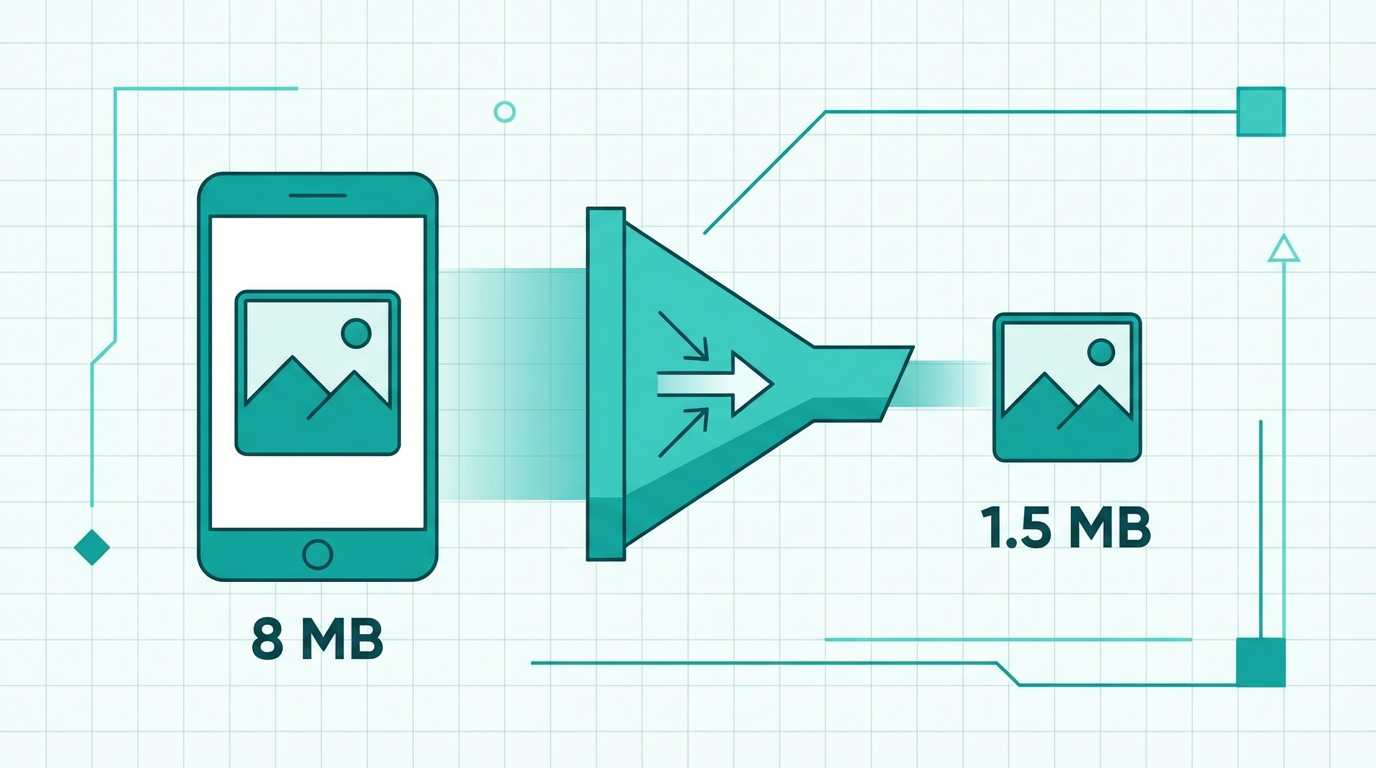
How to Compress HEIC Images Without Losing Quality: The Complete Guide
Learn how to compress HEIC images without sacrificing quality. Discover the best methods, optimal settings, and pro tips for reducing iPhone photo file sizes for web, email, and social media.
How to Compress HEIC Images Without Losing Quality: The Complete Guide
If you've ever tried to share an iPhone photo and hit a file size limit, you know the frustration. HEIC files are already more efficient than JPEG, but they can still be surprisingly large — especially when you're dealing with high-resolution shots from the latest iPhones. In this guide, we'll break down everything you need to know about HEIC compression: what makes this format unique, why your files are still too big, and how to shrink them without sacrificing the quality you love.
What Is HEIC and Why Does It Matter?
HEIC stands for High Efficiency Image Codec. It's the default photo format on iPhones and iPads since iOS 11 (2017), and it's built on top of the HEVC (H.265) video compression standard. The key selling point? A HEIC photo takes up roughly half the storage of an equivalent-quality JPEG.
But HEIC isn't just about smaller files. It also supports features that JPEG simply can't match:
- Transparency — like PNG, HEIC can handle transparent backgrounds
- 16-bit color depth — compared to JPEG's 8-bit, giving you richer gradients and smoother tones
- HDR support — 10-bit and 12-bit HDR images look stunning on modern displays
- Multiple images in one file — Live Photos, burst shots, and depth maps can all live inside a single .heic file
- Non-destructive editing — edits are stored as metadata, so you can always revert to the original
Despite all these advantages, HEIC has one major weakness: compatibility. Not every platform, browser, or application supports it natively. Windows requires additional codecs, many websites reject HEIC uploads, and even Adobe Photoshop only partially supports it. That's why converting HEIC to more universal formats is often necessary.
Need to convert your HEIC files right now? Use our free HEIC to JPG converter — it works instantly in your browser with no upload required.
Why Would You Need to Compress HEIC Files?
You might be thinking: "HEIC is already compressed — why would I need to compress it further?" Fair question. Here are the real-world scenarios where HEIC compression becomes essential:
1. Email Attachments
Most email providers cap attachments at 25 MB. A single HEIC photo from an iPhone 15 Pro can easily be 5–8 MB, and a batch of 10 photos will blow past that limit instantly.
2. Website and Blog Uploads
If you're uploading HEIC images to a CMS or website builder, large files slow down page load times. Google's Core Web Vitals penalize slow-loading pages, which directly hurts your SEO rankings. Every kilobyte matters.
3. Cloud Storage Optimization
Even with iCloud's generous storage, 50,000 photos at an average of 3 MB each means you're using 150 GB. Compressing those files by even 30% saves you 45 GB — potentially enough to drop down a storage tier and save money.
4. Social Media Uploads
Instagram, Facebook, and Twitter all re-compress your images anyway. By pre-compressing with careful quality settings, you maintain more control over the final result instead of letting the platform's aggressive algorithms degrade your shots.
5. Archival and Backup
Photographers who shoot thousands of images per month need efficient archival. Reducing HEIC file sizes while maintaining visual quality means more photos per hard drive and faster backup times.
Understanding HEIC Compression: Lossy vs. Lossless
HEIC supports both lossy and lossless compression, which makes it uniquely versatile:
Lossy Compression
This is the default when you take a photo on your iPhone. The encoder analyzes each image and discards visual information that the human eye is unlikely to notice. The result is dramatically smaller file sizes with minimal perceptible quality loss.
The HEVC codec that powers HEIC is remarkably efficient at this. It uses advanced techniques like:
- Intra-frame prediction — predicting pixel values based on neighboring pixels within the same image
- Transform coding — converting spatial data into frequency domain for more efficient compression
- Context-adaptive binary arithmetic coding (CABAC) — a sophisticated entropy coding method that squeezes out redundant data
- Variable block sizes — from 4×4 to 64×64 pixels, allowing the encoder to adapt to different image regions
Lossless Compression
When you need pixel-perfect accuracy (medical imaging, professional photography, archival), HEIC can compress without discarding any data. Lossless HEIC files are larger than lossy ones, but still significantly smaller than uncompressed formats like TIFF or BMP.
How to Compress HEIC Images: Step-by-Step Methods
Method 1: Convert to a More Efficient Format
Sometimes the best "compression" is converting HEIC to a format that's better suited for your use case.
For web use, converting HEIC to WebP or AVIF often produces even smaller files with comparable quality. For maximum compatibility, converting to JPEG at 80–85% quality gives you a good balance of size and quality.
The easiest way to do this: Head over to ConvertMinify's free image converter and convert your HEIC files to JPG, PNG, WebP, or any other format — all processing happens in your browser, so your photos never leave your device.
Method 2: Reduce Image Dimensions
A 48 MP photo from an iPhone 15 Pro is 8064 × 6048 pixels. If you're posting on social media, you rarely need more than 2048 × 1536. Resizing before compression can reduce file size by 75% or more.
Here's a quick reference for optimal dimensions by use case:
| Use Case | Recommended Size | Approximate File Size |
|---|---|---|
| Instagram Post | 1080 × 1350 px | 200–500 KB |
| Facebook Cover | 1640 × 924 px | 150–400 KB |
| Website Hero Image | 1920 × 1080 px | 300–800 KB |
| Email Attachment | 1600 × 1200 px | 200–600 KB |
| Print (4×6 at 300 DPI) | 1800 × 1200 px | 500 KB–1.5 MB |
| Full Resolution Archive | Original | 3–8 MB |
Method 3: Adjust Quality Settings
Most compression tools let you set a quality level, typically on a scale of 1–100. Here's what different quality levels actually mean in practice:
- Quality 90–100: Virtually indistinguishable from the original. File size reduction of 10–20%. Best for professional photography and archival.
- Quality 75–89: Excellent quality for most purposes. File size reduction of 30–50%. The sweet spot for web use and sharing.
- Quality 60–74: Noticeable compression artifacts on close inspection, but perfectly acceptable for social media and thumbnails. File size reduction of 50–70%.
- Quality below 60: Visible quality degradation. Only recommended for thumbnails or preview images.
Method 4: Strip Metadata
HEIC files can carry significant metadata: EXIF data (camera settings, GPS location, date/time), color profiles, depth maps, and editing history. Stripping unnecessary metadata can save 50–200 KB per image.
However, be thoughtful about this. If you're a photographer, you probably want to keep your EXIF data. If you're posting to social media, stripping GPS data is a smart privacy move.
Method 5: Batch Compression
If you're dealing with hundreds or thousands of HEIC files, manual compression isn't practical. Look for tools that support batch processing — upload all your files at once, apply consistent settings, and download everything in a ZIP.
HEIC vs. Other Formats: A Compression Comparison
To understand where HEIC stands, let's compare it with other popular image formats:
| Format | Compression Type | Transparency | Animation | Typical Size (12 MP photo) | Browser Support |
|---|---|---|---|---|---|
| HEIC | Lossy + Lossless | Yes | Yes | 1.5–3 MB | Limited |
| JPEG | Lossy only | No | No | 3–6 MB | Universal |
| PNG | Lossless only | Yes | No | 15–25 MB | Universal |
| WebP | Lossy + Lossless | Yes | Yes | 1–2.5 MB | 97%+ |
| AVIF | Lossy + Lossless | Yes | Yes | 0.8–2 MB | 92%+ |
As you can see, HEIC offers excellent compression but falls short on browser support. For web projects, WebP and AVIF are often better choices. For offline storage and Apple ecosystem use, HEIC remains the gold standard.
Want to see how different formats compare side by side? Check out our detailed format comparison tool to find the best format for your specific needs.
Best Practices for HEIC Compression
After working with thousands of HEIC files, here are the practices that consistently deliver the best results:
For Photographers
- Keep originals in full-resolution HEIC or lossless format
- Create compressed copies for sharing and web use
- Use quality 85–90 for client deliverables
- Always maintain color profiles when compressing
For Web Developers
- Convert HEIC to WebP for modern browsers, JPEG as fallback
- Target file sizes under 200 KB for hero images, under 100 KB for thumbnails
- Implement responsive images with multiple sizes using the
<picture>element - Use lazy loading for images below the fold
For Everyday Users
- Let your iPhone shoot in HEIC (it's the most storage-efficient option)
- Convert to JPEG only when you need to share with non-Apple users
- Use quality 80 for social media uploads — it's the sweet spot
- Strip GPS metadata before sharing photos publicly for privacy
For Social Media Managers
- Pre-compress images at the platform's recommended dimensions
- Use JPEG at quality 85 for maximum compatibility
- Keep a high-resolution archive of all originals
- Test compression levels on sample images before batch processing
Common HEIC Compression Mistakes to Avoid
1. Compressing an already compressed file multiple times. Each round of lossy compression degrades quality further. Always start from the original file.
2. Using quality settings that are too aggressive. Dropping below quality 60 saves minimal additional space but introduces very visible artifacts, especially in gradients and skin tones.
3. Ignoring color profiles. Stripping color profile data can make your photos look washed out or oversaturated on different displays.
4. Forgetting about aspect ratio. When resizing, always maintain the original aspect ratio to avoid distorted images.
5. Not testing on multiple devices. A photo that looks great on your Retina display might show compression artifacts on a lower-resolution monitor. Always preview on at least two different screens.
The Future of HEIC
Apple continues to invest in HEIC, and support is gradually expanding across platforms. Android has supported HEIC since Android 10 (2019), and Windows now offers native support through optional codec extensions.
Meanwhile, newer formats like AVIF (based on AV1) and JPEG XL are gaining traction. AVIF in particular offers even better compression than HEIC and is royalty-free, making it attractive for web use. However, HEIC's deep integration with the Apple ecosystem means it's not going anywhere soon.
The smart approach? Use HEIC for storage and Apple ecosystem workflows, and convert to WebP or AVIF for web delivery. This gives you the best of both worlds: efficient storage and maximum compatibility.
Wrapping Up
HEIC is a powerful format that revolutionized how we store photos on mobile devices. But knowing how to compress and convert HEIC files effectively is essential for anyone who works with images regularly — whether you're a photographer, web developer, social media manager, or just someone who takes a lot of iPhone photos.
The key takeaways:
- HEIC already offers excellent compression, but further optimization is often needed for specific use cases
- Quality 80–85 is the sweet spot for most sharing and web scenarios
- Always compress from the original file, never from an already-compressed copy
- Consider converting to WebP or AVIF for web projects where HEIC support is limited
- Strip metadata when privacy matters, but keep it when you need the technical data
Ready to optimize your images? Visit ConvertMinify to convert, compress, and resize your images for free — everything runs in your browser, so your files stay private and secure.